Description
This quick guide provides an overview of the VoIP integration using Jive phone services.
Contents
The following topics are covered in this quick guide:
Section 1 - Setting Up Jive in Curve Hero
Section 2 - Accessing VoIP Options in Curve Hero
Section 3 - Viewing Inbound Call Notifications
Section 4 - Clicking to Call
Section 5 - Disabling VoIP Integration for a User
Steps
Section 1 - Setting Up Jive in Curve Hero
-
In the Sidekick, click the More menu, then click Administration within the drop-down list.

-
In the Administration menu, within the User management drop-down list, click User directory.

-
Locate the applicable user by searching or scrolling.
.png)
- Within the user's profile, scroll down to the Services section and click Edit in the Jive section.
-
To enable Jive, set the slide toggle to Yes and click Save.

- Click the Authorize access to Jive link. This will open the Jive sign-in page in a new window. Enter your credentials to authorize.
- Reload your web browser to finalize the integration.
Section 2 - Accessing VoIP Options in Curve Hero
-
After authorization, VoIP options will display in each patient's profile.

-
The VoIP options will also display in the Sidekick contact area.

Section 3 - Viewing Inbound Call Notifications
An inbound call will search Curve Hero to match the phone number. Matching results will display a notification showing caller ID, patient name, and status.
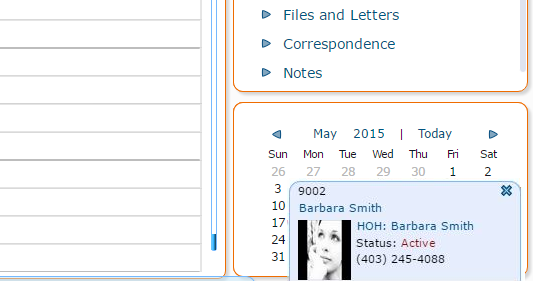
Note: To load the patient information, click the blue link in the notification.
Section 4 - Clicking to Call
- Select the patient and click on the phone icon next to the number you wish to call.
-
If you have multiple lines, select the correct line from the menu.
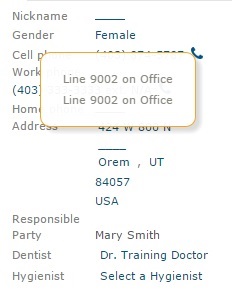
- Your physical Jive phone will ring. Pick it up to initiate the outbound call to the patient.
Section 5 - Disabling VoIP Integration for a User
- Navigate back to the user's profile in Administration.
- In the Jive section, click Revoke access to Jive.
- Reload your browser. The phone icons will now appear gray, indicating the user is no longer authorized.
♻️ Please consider the environment before printing this quick guide.
Copyright 2026 by CD Newco, LLC, USA Proprietary and Confidential All Rights Reserved.
Disclaimer: All information presented herein is solely intended to train employees of Curve Dental customers on the use of the software application described in this Community Article and to illustrate how Curve software can be integrated into a typical practice's operations. Statements and examples used in this Community Article are not intended to contradict or in any way override the written or verbal instructions of the leadership of the customer ("Licensee"). The Licensee is responsible for establishing its own practices and procedures and making each of its employees familiar with them, including those related to the use of the application described in this Community Article. Nothing in this Community Article should be construed to be instructing any Licensee employee to violate any Federal, State, Provincial or other jurisdictional law or regulation; or to violate any aspect of the Licensee's established practices and procedures. The information contained in this document is the copyrighted property of CD Newco, LLC. No part of this document may be reproduced, republished, translated, stored in a retrieval system, or transmitted in any form, or by any means, mechanical, photocopying, recording, or otherwise, without the prior written consent of CD Newco, LLC. Licensees may print copies of this Community Article for their own internal use. CD Newco, LLC may take any action permitted by law to enforce its rights hereto. The information contained in this document is subject to change without notice. The enclosed materials are not a contract and create no rights upon the reader or obligations of any kind on CD Newco, LLC or its affiliates. CD Newco, LLC reserves the right to make changes to any products or services described in this Community Article at any time without notice. CD Newco, LLC shall not be liable for the actions or inactions of the reader in reliance upon the information contained in this document.
Trademarks: Curve is a registered trademark of CD Newco, LLC. Any other product and company names used herein are the property of their respective owners.
Version: This documentation was prepared in conjunction with the latest release of the subject matter of this Community Article, but may be utilized with future releases until such time that more current materials are published.
Comments: Any comments or suggestions regarding the information herein are welcome and should be emailed to the attention of: support@curvedental.com.